So now that I have my blog up and running I wanted to add my social media links to the upper right hand corner of the site. I wanted them to be simplistic and related to the look and feel of the new blog. The first thing I did was check out the new widgets that come loaded with HybridTheme.

I opted to go for a text widget to see what it would look like and the Utility position seemed like it made the most sense at first. I just threw some sample text in both the Title field and the content portion of the widget as you can see here:
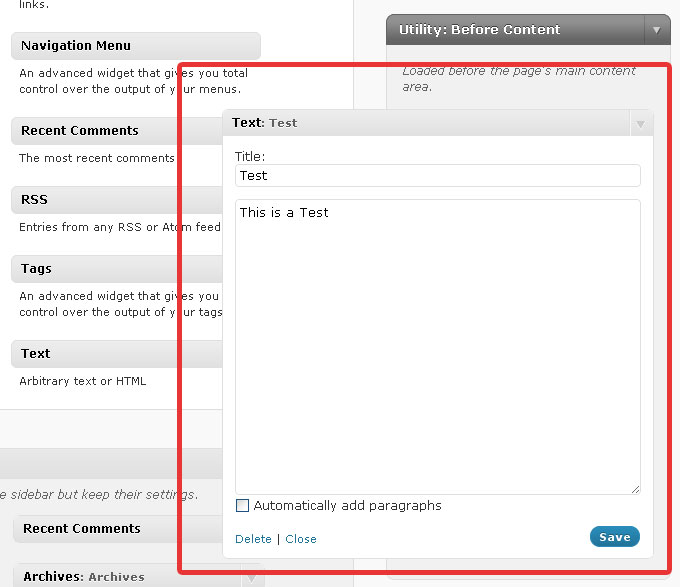
And this is the result it got me:
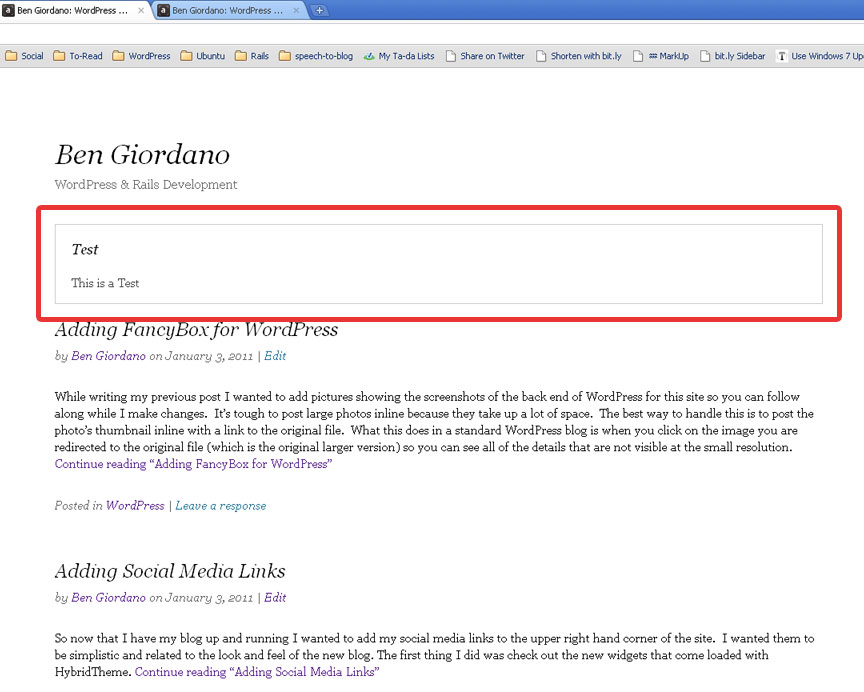
Overall it looks pretty decent but we need to style this individual widget so that it is aligned to the upper right hand corner of our site. We also need to get rid of the border and most likely style our title a bit differently by way of fonts, colors, etc. To do this job I highly recommend FireBug. This is a hugely helpful add-on for any developers using Firefox or Chrome (Chrome users see FireBug Lite) as their primary browser. Once activated on a page FireBug opens a window that shows the pages HTML, CSS, Scripts and many other things. Whats even sweeter is that you can edit say the CSS on the page and watch the browser react to those changes. It’s a great way to test and make changes to the CSS of a site without messing with the actual files. Once you are satisfied with your changes you can pop open your source files and make the necessary changes knowing exactly how they will look on the front end. Below you can see what it looks like when we inspect the item with FireBug.
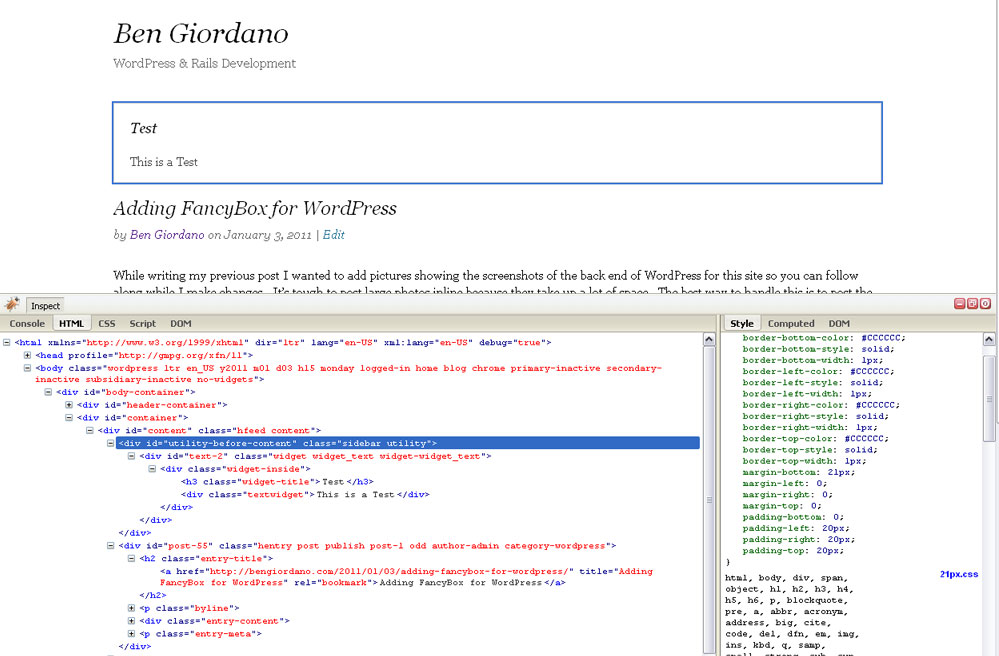
We can then modify the specific item’s CSS to place it where we would like it. Ideally we want it on the same level as our title and aligned to the right without a border. To do this we need to change a few attributes. One thing we need to change is removing all “border” attributes for this specific item and add one that simply states “border: none;” While I was at it I also added a “text-align: right;” attribute since we want to place the icons on the right hand side of the page. You can see the text changes I have made in FireBug and how this has changed the front end here:

Now that we have the widget in the right spot horizontally we need to get the vertical alignment corrected. As I said before, I wanted to place the icons on the same line as the blog description. I think the best way to go about this is to find the header block and change it’s bottom margin. Then we can add a bottom margin to the new widget to keep the body of the blog from creeping up. Let’s see what this looks like in FireBug:
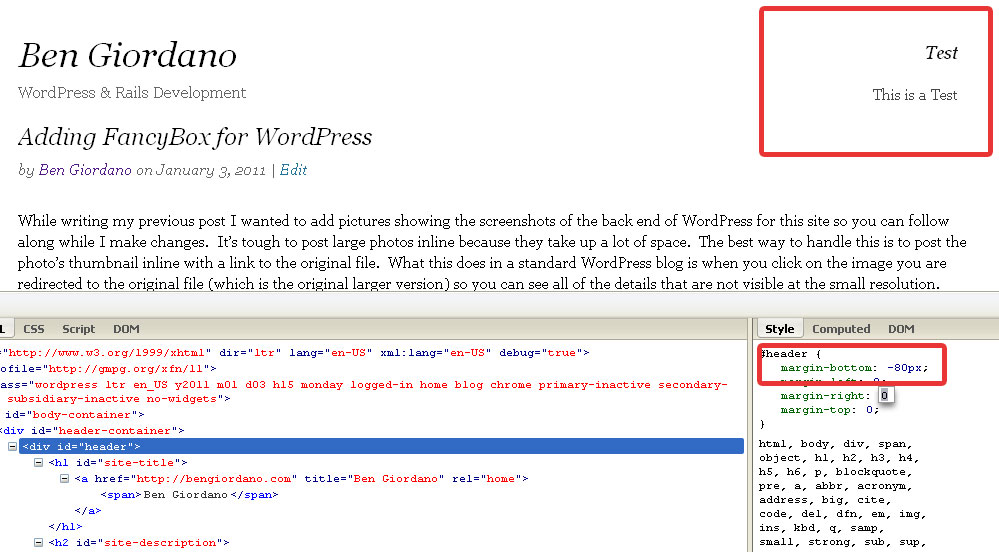
Great, now all we have to do is add some bottom margin spacing to our new text widget to prevent our articles from creeping up the page. I’ll skip this step in FireBug as it is basically the same as the previous except for a different attribute. The next step is to go into our source files and edit them to match our desired FireBug settings.
Finally we can find an icon set that we like that fits the overall look and feel of our site. I found a great icon set from ARS Graphik and resized them to 32x32px. The site has a lot of free space in that corner and I wanted the social media links to really stand out. Now we edit our text widget to display our icons and link them to our various social media profiles. Here is what the code behind the text widget looks like:

And our final product:
