Check if logged in user is admin in WordPress

I was working with a plugin that had “private field” that were only displayed to the administrator role, but I wanted them to be seen by any logged in user. Learned a lot along the way while working through this issue.

While there is no direct function to check it a logged in user is an admin, it seems the common practice is the following:


if ( current_user_can( 'manage_options' ) ) {
/* do something for admin users */
} else {
/* do something for everyone else */
}

Very useful little bit!

I actually ended up replacing current_user_can( 'manage_options' ) with is_user_logged_in() to get the desired outcome I was looking for in my specific case.

Fade In or Fade Out an Image with CSS

Simple little bit of CSS to fade out an image to 50% opacity:


img {
opacity: 1.0; /* Change this to .5 for 50% opacity */
-webkit-transition: .5s;
-moz-transition: .5s;
-ms-transition: .5s;
-o-transition: .5s;
transition: .5s;
}
img:hover {
opacity: .5;
}

Can also reverse the opacity values to get a fade in with CSS:


img {
opacity: .5; /* Change this to .5 for 50% opacity */
-webkit-transition: .5s;
-moz-transition: .5s;
-ms-transition: .5s;
-o-transition: .5s;
transition: .5s;
}
img:hover {
opacity: 1.0;
}

Play around with it more here on JSFIDDLE: http://jsfiddle.net/HuXq7/

Adding Custom CSS to Specific WordPress Pages

Working on a website where I want to have one background image for the homepage and then a different one for the interior pages. Pretty simple right? Well I looked through some of the .php files and page templates to see where the background was getting pulled and how it was being called on. Turns out the quickest and simplest way to achieve this is just by modifying the CSS file.

Just like you can modify specific text widgets with their own CSS you can modify specific pages with their own CSS. WordPress makes this very easy to do via page IDs. To change up the CSS of a page just call out the element and the page id, then add your custom CSS attributes as seen in this example:

body.page-id-111{
background-color:#E7E7E7;
background-position:50% 0;
background-repeat:repeat no-repeat;
border-top-color:#000000;
border-top-style:solid;
border-top-width:4px;
}

Simple, quick and unobtrusive way to make the adjustments on a per-page basis. Enjoy!

Widgets-on-Pages Plugin Saves Lives

Building a new site for a client and I came across a bit of a stumbling point. The client wanted me to add static text to an area that was currently occupied by a java slider that was coded into the php template files. Also, the slider was to be resized to half it’s current width with the content residing to the immediate right of it. I spent a bit of time researching ways to achieve this without disrupting the original theme template files.

First move was to adjust the CSS and shrink down the slider element to the desired with, aligning it far left. Now this provided me with the space I needed for the static content, problem was getting it there. Enter “widgets-on-pages” plugin.

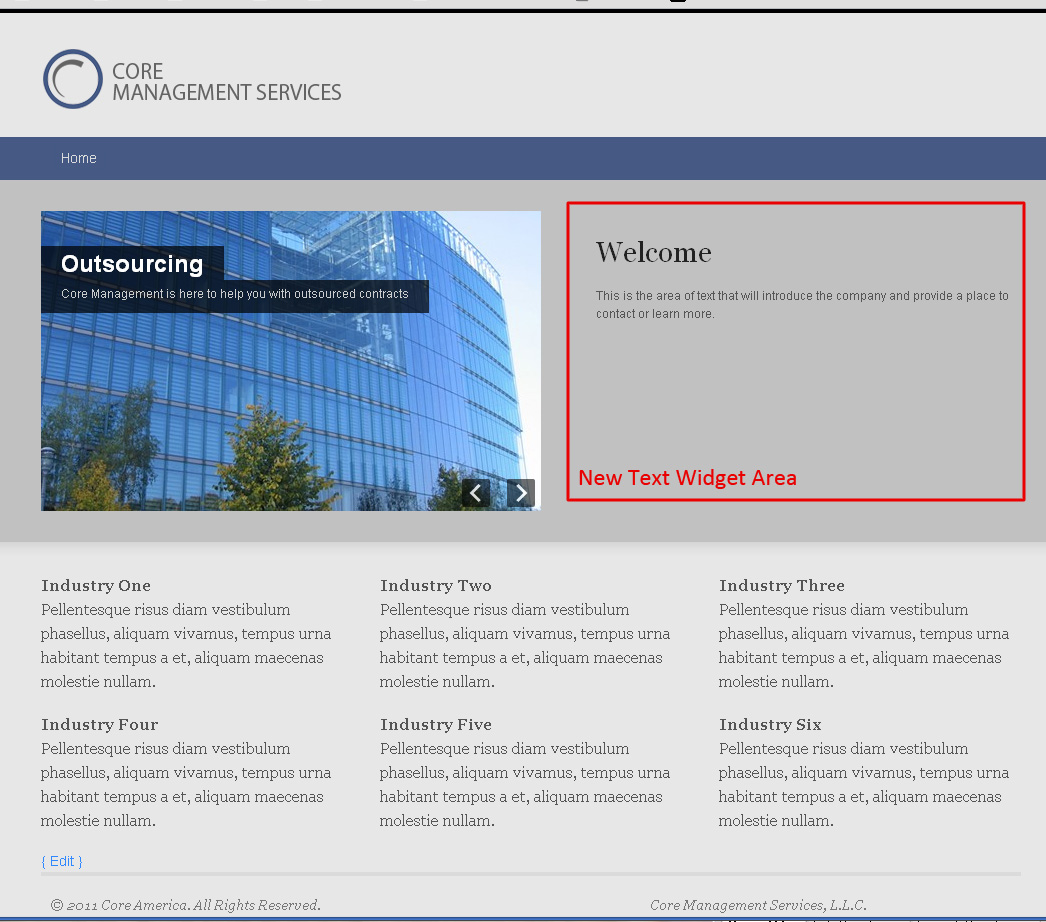
This plugin by Gingerbread Design is exactly what I was looking for. With it you can add custom widget areas and define their names. You can then call on them with a quick and easy shortcode provided in the plugins FAQ documentation. This is an amazing time saver. The solution I came up with was to use a text widget on the new custom widget area and then add it to my stylesheet with the appropriate style to get it to the right spot. Check out the final result:

Understanding WordPress Custom Taxonomy

I have been working a bit with the new Custom Taxonomies to develop a small business directory site that is aimed at the local community where I live.  However, diving into custom taxonomy head first left me not really understand the basics from the ground up so I spent some time looking for a guide to gain a better understanding.  Thanksfully, John Gadbois put together a great guide.  I will walk through the guide as well as add some of my own thoughts.

To start off with we can define what a Taxonomy is according to the WordPress Codex:

Taxonomyis one of those words that most people never hear or use. Basically, a taxonomy is a way to group things together.

For example, I might have a bunch of different types of animals. I can group them together according to various characteristics and then assign those groups names. This is something most people encounter in biology classes, and it is known as the Linnaean Taxonomy.

In WordPress, a “taxonomy” is a grouping mechanism for some posts (or links).

In fact it seems taxonomies are very common to anyone using WordPress.  We know them as things like a Category or Tag.  This makes sense when we take into consideration the above definition. So to summarize, a WordPress Taxonomy is a way to group posts.  The posts can be the standard blog posts or they can be custom posts.  Taxonomies can be added to drill down into post types even further and segment things more than is available with the current Category and Tag methods.  One quick illustration on how they could be useful is if you had a travel blog and wanted to create a Taxonomy called say “state.” This could allow you to drill down and sort posts by what part of the country they were written about while retaining the usefulness of your category and tag attributes.

It is also worth talking about the real beauty of using taxonomies — through custom taxonomies with custom post types. In our business directory site for example, we would want to use “Business Category” as a taxonomy so that we can group business listings by their particular offering or industry.  This will allow visitors to quickly sort the listings in a very clean and easy to understand way.

Johns guide then takes you through some coding on how to create specific custom taxonomies, I suggest you look at the snippets he provides to get a feel for what they look like and take a shot at implementing some of your own.

Adding FancyBox for WordPress

While writing my previous post I wanted to add pictures showing the screenshots of the back end of WordPress for this site so you can follow along while I make changes.  It’s tough to post large photos inline because they take up a lot of space.  The best way to handle this is to post the photo’s thumbnail inline with a link to the original file.  What this does in a standard WordPress blog is when you click on the image you are redirected to the original file (which is the original larger version) so you can see all of the details that are not visible at the small resolution.

However, this is not the most aesthetically pleasing way to see images enlarged, enter FancyBox for WordPress.  This is a great free plug-in offered to the WordPress community that takes any linked image and displays the link in a very pretty overlay.  You can see it in action here:

Binghamton Marketing Logo

I highly recommend FancyBox for WordPress as a very simple, clean and great looking way to share thumbnails and large images on your WordPress blog.

Adding Social Media Links and Modifying Their CSS

So now that I have my blog up and running I wanted to add my social media links to the upper right hand corner of the site.  I wanted them to be simplistic and related to the look and feel of the new blog. The first thing I did was check out the new widgets that come loaded with HybridTheme.

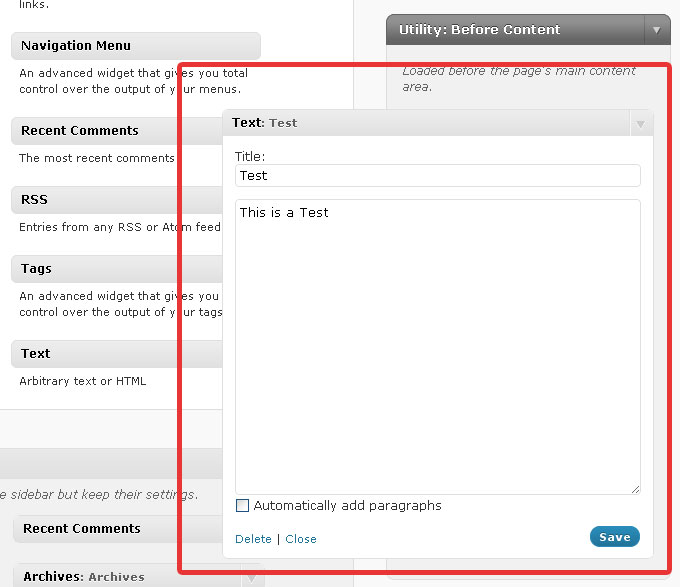
I opted to go for a text widget to see what it would look like and the Utility position seemed like it made the most sense at first.  I just threw some sample text in both the Title field and the content portion of the widget as you can see here:

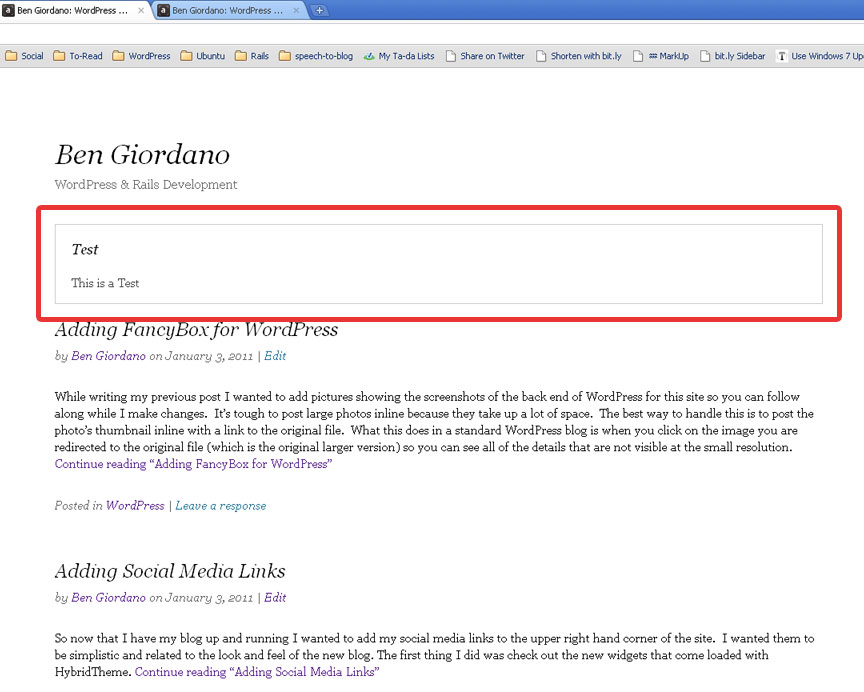
And this is the result it got me:

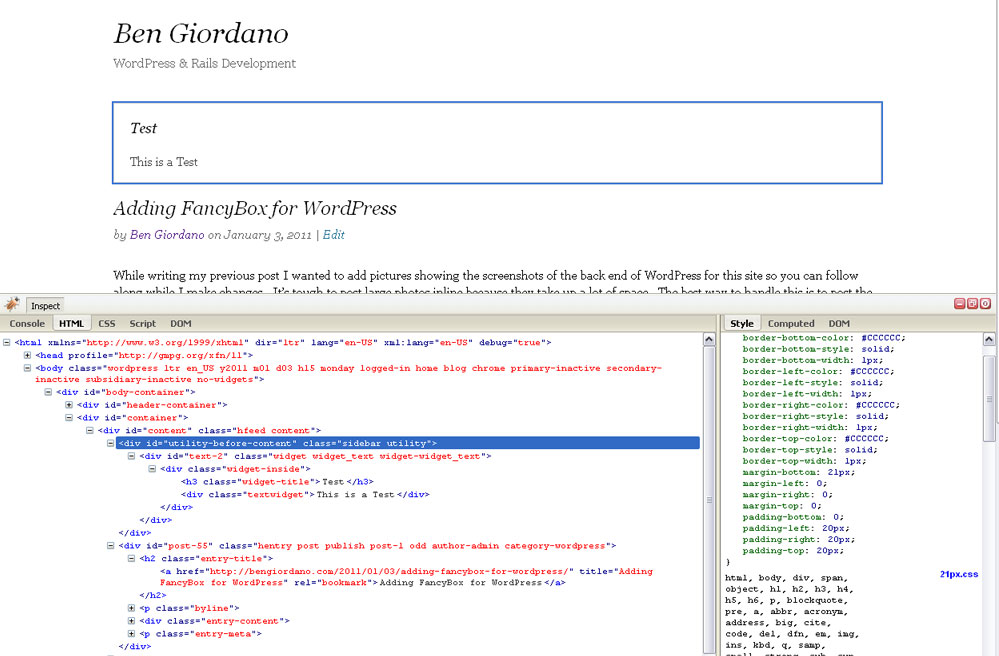
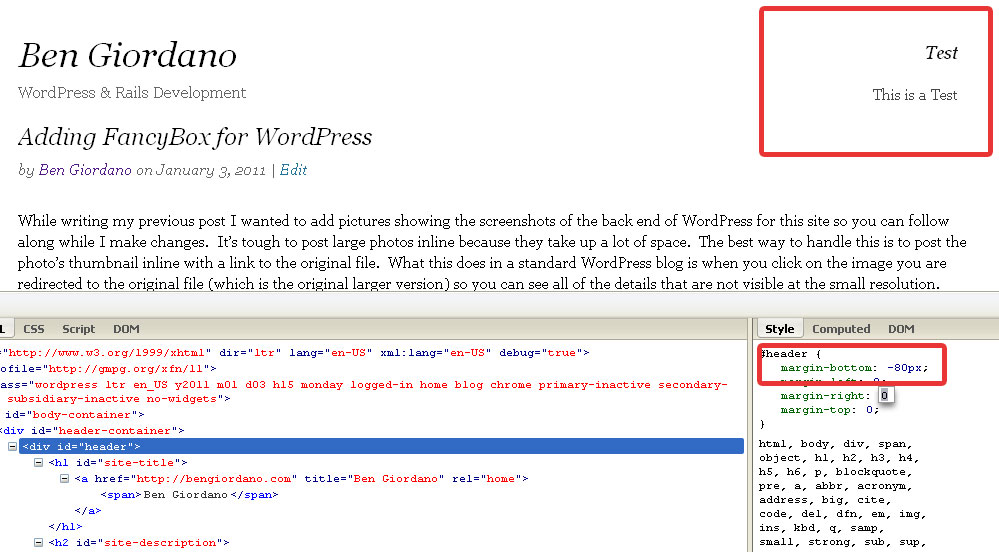
Overall it looks pretty decent but we need to style this individual widget so that it is aligned to the upper right hand corner of our site.  We also need to get rid of the border and most likely style our title a bit differently by way of fonts, colors, etc.  To do this job I highly recommend FireBug.  This is a hugely helpful add-on for any developers using Firefox or Chrome (Chrome users see FireBug Lite) as their primary browser.  Once activated on a page FireBug opens a window that shows the pages HTML, CSS, Scripts and many other things.  Whats even sweeter is that you can edit say the CSS on the page and watch the browser react to those changes.  It’s a great way to test and make changes to the CSS of a site without messing with the actual files.  Once you are satisfied with your changes you can pop open your source files and make the necessary changes knowing exactly how they will look on the front end. Below you can see what it looks like when we inspect the item with FireBug.
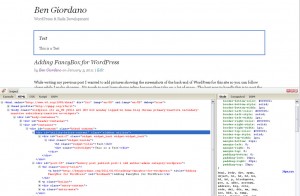
We can then modify the specific item’s CSS to place it where we would like it.  Ideally we want it on the same level as our title and aligned to the right without a border. To do this we need to change a few attributes.  One thing we need to change is removing all “border” attributes for this specific item and add one that simply states “border: none;” While I was at it I also added a “text-align: right;” attribute since we want to place the icons on the right hand side of the page. You can see the text changes I have made in FireBug and how this has changed the front end here:

Now that we have the widget in the right spot horizontally we need to get the vertical alignment corrected. As I said before, I wanted to place the icons on the same line as the blog description.  I think the best way to go about this is to find the header block and change it’s bottom margin.  Then we can add a bottom margin to the new widget to keep the body of the blog from creeping up.  Let’s see what this looks like in FireBug:

Great, now all we have to do is add some bottom margin spacing to our new text widget to prevent our articles from creeping up the page.  I’ll skip this step in FireBug as it is basically the same as the previous except for a different attribute. The next step is to go into our source files and edit them to match our desired FireBug settings.

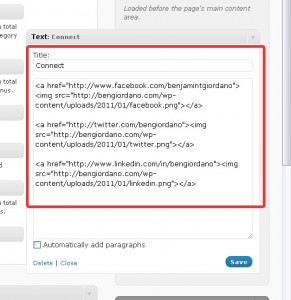
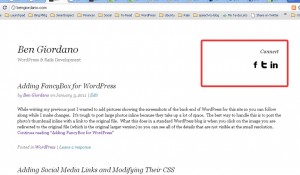
Finally we can find an icon set that we like that fits the overall look and feel of our site.  I found a great icon set from ARS Graphik and resized them to 32x32px.  The site has a lot of free space in that corner and I wanted the social media links to really stand out.  Now we edit our text widget to display our icons and link them to our various social media profiles.  Here is what the code behind the text widget looks like:
And our final product:
Choosing a Theme Framework

Since I have decided to open this blog back up and focus in on WordPress and Rails development related articles I wanted to overhaul the look and feel of it.  After spending a bit of time online looking through some options I decided I needed to build it on a theme framework that had a strong community and starting point for a developer at my level.

I have been using the WooThemes framework: (WooThemes – Premium WordPress Templates) for about a year or so and have really grown to love it.  However, at times the framework seems bloated and all of the backend GUI options seem cumbersome. This brought about my quest to find something different and I did in the form of the ThemeHybrid community.

After spending some time on their site, looking through the ref guides and parent theme options I decided to go with the Hybrid parent theme for this blog. I’m sure there will be a little learning curve to go along with it but so far I like it a lot.